Social creator
A creator has a recorded reaction or performance but the mouth timing does not match the selected sound.
A focused video pass makes the clip feel more deliberate before it is cut for social publishing.
lip sync aiVideo workflow
Turn a spoken clip, performance, or character shot into a lip sync video with aligned mouth movement and audio. Start with the source files you already have and refine the result from there.
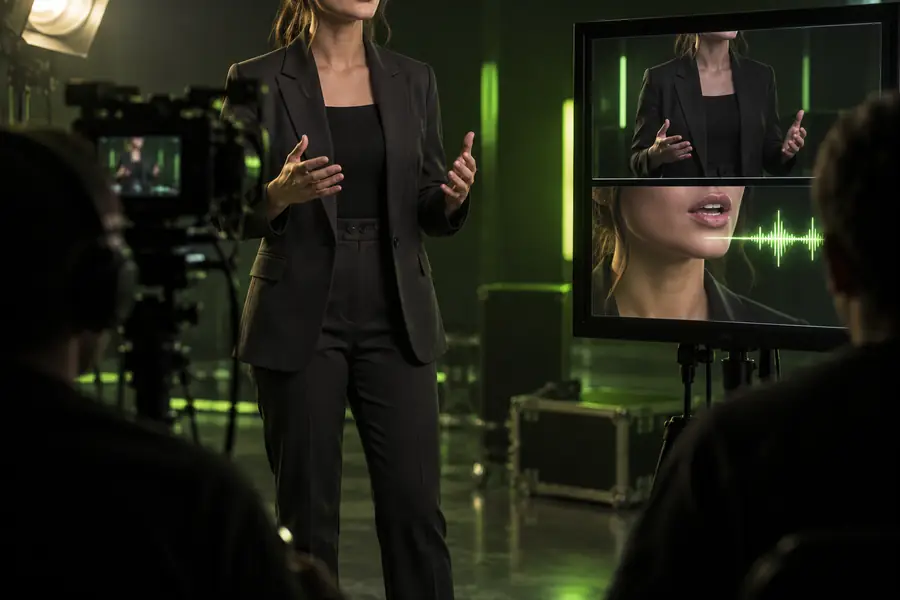
Use this route when the video already exists and the main task is matching visible speech to a soundtrack. These related paths cover different starting points.
A video-first workflow is focused, but it is not universal. Knowing its edges helps you avoid asking one clip to solve an audio, character, and editing problem at once.
This route is built around a recorded video with a visible face or mouth. It does not replace the filming step or invent a complete scene from a blank canvas.
WorkaroundPrepare a clear source clip first, or use lip sync animation for a character-led starting point.
The core result is better timing between audio and visible mouth movement. It does not automatically fix every acting choice, camera issue, background problem, or creative edit.
WorkaroundClean the source video and audio before syncing, then make final cuts in your normal editor.
A turned-away subject, heavy obstruction, noisy recording, or mismatched duration can reduce the quality of the result. It cannot infer reliable mouth shapes from missing visual information.
WorkaroundChoose a front-facing take and a clearly separated voice track with similar timing.
The cleanest results come from treating the job as a short preparation pass followed by a focused alignment pass and a review.
Select a clip where the face is visible, the mouth is not repeatedly covered, and the camera movement is manageable. Short, well-lit footage is easier to inspect and correct.
Use the voice, dialogue, or performance track that should drive the mouth movement. Trim obvious silence and keep the audio length close to the selected footage.
Watch several words near the beginning, middle, and end instead of judging one frame. If timing slips, revisit the source alignment before changing the creative edit.
The useful comparison is timing: the spoken audio and visible mouth movement should feel like one performance, not two separate layers.
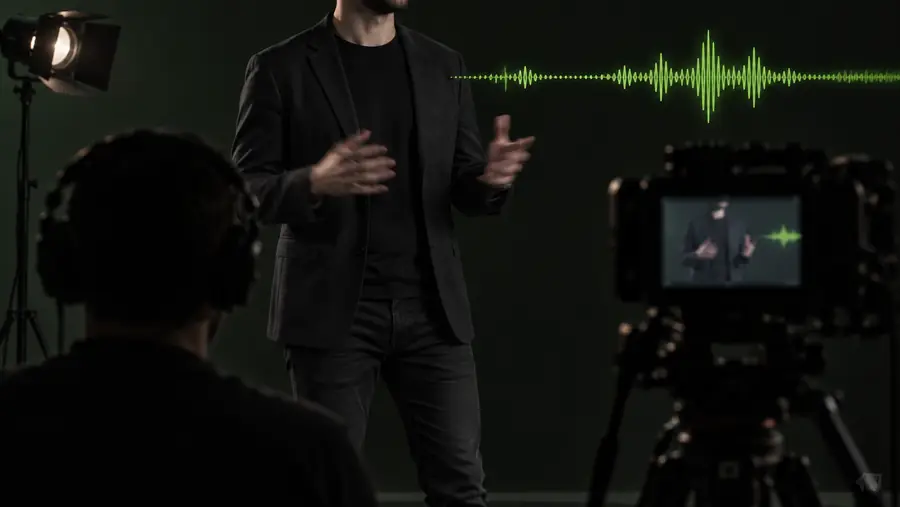
The same workflow can support several kinds of creators, as long as the source footage and driving audio are clear.
A creator has a recorded reaction or performance but the mouth timing does not match the selected sound.
A focused video pass makes the clip feel more deliberate before it is cut for social publishing.
lip sync aiAn editor needs to align replacement dialogue with an existing talking-head shot without rebuilding the whole sequence.
The editor gets a practical starting point for reviewing dialogue timing and preserving the original composition.
lip sync online freeA singer or actor wants a performance clip to follow a different vocal or playback track more convincingly.
The resulting video can support a short-form concept, rehearsal preview, or alternate performance version.
lip sync animationA presenter has a clean instructional clip and needs to test a revised spoken track before making a final edit.
The video-first workflow helps compare the new delivery while keeping the presenter and framing familiar.
lip sync aiWhen the source video is usable and the audio is clear, a focused lip sync video workflow can remove the most distracting timing gap. Bring your clip and track together, review the result, and decide whether it is ready for your next edit.
Sync my videoA lip sync video is footage in which visible mouth movement is aligned with a selected voice, dialogue, or performance track. The goal is to make the person or character appear to say or sing the supplied audio naturally.
Prepare a video with a visible face and a separate, understandable audio track. Front-facing footage, limited obstruction, and similar source lengths usually make timing easier to review.
No. It focuses on the relationship between mouth movement and audio, not every issue in filming or editing. Poor lighting, blocked lips, extreme camera movement, noisy sound, and mismatched performances may still need manual correction.
Yes. A video-first workflow begins with existing footage and treats synchronization as the main task. A lip sync ai workflow may offer broader generation or transformation options, while lip sync animation is better suited to illustrated or character-based inputs.